
Read and Customise Reports · Track 1 · Tutorial 5 of 5
Drill, comment and export from a Cell Report
A Cell Report in View is more than a page to read. A bound figure opens the postings behind it, any cell can carry a comment for the team, and the whole report exports to PDF for the pack or to Excel to work on.
1Drill from a figure
- Open the monthly summary in View.
- Hover over B4: a figure you can drill shows Drill into what it reads and for which month. Click it.
The drill page opens on the postings behind the figure — for B4, October’s revenue for the entity and currency chosen — with the same cards, filters and source documents as a drill from any report. See Drill from any figure to its source.
To keep the report open, right-click the figure and choose Open drill in new tab. Text, typed numbers and formula results have nothing to drill; drill the bound figures they are worked out from.
2Comment on a cell
- Right-click D4, October’s revenue variance, and choose Add Comment.
- In New Comment, write the comment, and type @ and a name to mention a teammate.
- Save it.
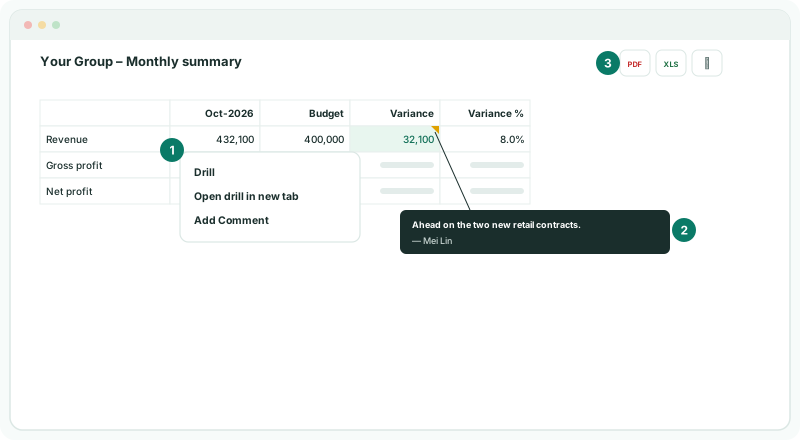
A commented cell shows a marker in its corner; hover over it to read every comment on the cell, with who wrote it. A teammate you mention is notified. Comments belong to the report and the cell, not the month, so write which month a comment is about.
3Export to PDF or Excel
- Click Export to PDF or Export to Excel at the top of the report.
The export is the report as saved: it uses each selection list’s Selected value, not a choice made in View. To export another entity or month, change the Selected value in the editor and save first.
| The report as a page, for the pack, the board or the audit file. | |
| Excel | A workbook to work on. Bound figures arrive as numbers for the month you exported, and formulas as formulas, so the variance and margin still calculate in Excel. Conditional formatting comes with them. |
Check
In the Excel file, B4 holds October’s revenue as a number, D4 the formula =B4-C4, and the variance colours are in place. The PDF shows the same figures as View with the Selected values.
4If something goes wrong
| What you see | What to do |
|---|---|
| A figure can’t be drilled | It isn’t a bound figure. Drill the cells it is worked out from. |
| A mentioned teammate wasn’t notified | Check the name was picked from the list that appears after @, not typed out. |
| Unable to export this report. | Wait for the figures to finish calculating, then export again. |
| The export shows another entity or month than on screen | The export uses the Selected values saved with the report, not choices made in View. Change them in the editor and save. |
Want more detail? See the documentation