
Foundations · Track 5 · Tutorial 1 of 4
Ask Claude about your group
Connect Claude to BrizoConsol, and ask about your group the way you would ask a colleague — “How did each company do in September?” — with the answer read from your own figures.
1Understand what the connection does
BrizoConsol runs an MCP server — MCP is the standard Claude uses to read data from other applications. When you ask Claude a question, it asks BrizoConsol for the figures it needs, then writes the answer.
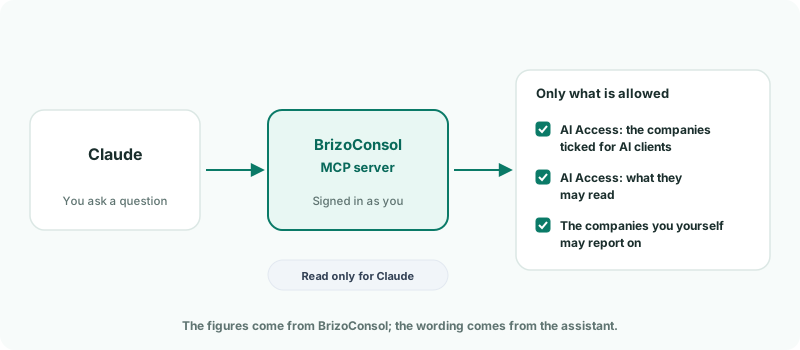
| Your group decides | Which companies AI clients may read, and what data. Everyone who connects gets the same limits; they cannot widen them. |
|---|---|
| Your own access decides | A connection only reaches the companies the person who connected may report on in BrizoConsol. |
| Read only | Claude can read, never change anything in BrizoConsol. |
Reading through the MCP server is included on every plan, including the free trial.
2Allow AI connections for your group
- Select your group in the entity selector.
- Open Settings → Global Settings → Integrations → AI Access.
- Tick Allow AI connections.
- Under Companies they may read, tick the companies AI clients may read.
- Under What they may read, tick the data they may read.
- Click Save.
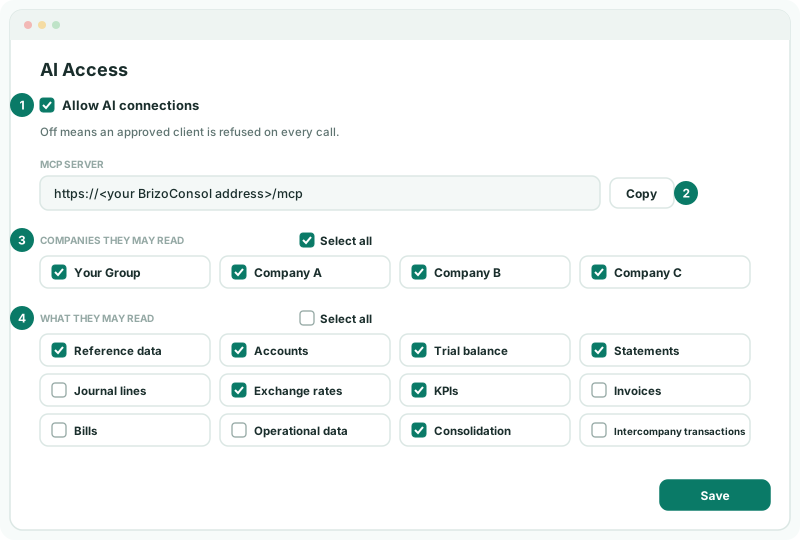
In the running example, tick your group and Companies A, B and C. Then choose the data by what people will ask about:
| To ask about | Tick |
|---|---|
| Anything at all | Reference data — the list of companies and months every question starts from. |
| Group and company results | Statements, and KPIs for measures such as receivable days. |
| Account balances | Accounts and Trial balance. |
| Currency and group entries | Exchange rates and Consolidation. |
| Individual transactions | Journal lines, Invoices, Bills, Intercompany transactions. Leave these off if names of customers, suppliers and staff should not reach an AI assistant. |
Tick at least one company and one item of data. With the switch on but nothing ticked, every question is still refused.
3Copy the MCP server address
- On the same page, under MCP server, click Copy.
The address is your BrizoConsol address followed by /mcp. It is the same for everyone in your group — each person still signs in as themselves, so you can share it with your team.
4Add BrizoConsol to Claude
How you add it depends on your Claude plan.
Pro or Max — you add it yourself:
- In Claude, open Settings → Connectors.
- Click Add custom connector, enter BrizoConsol as the name, paste the address, and click Add.
- Click Connect. BrizoConsol opens in your browser: sign in as usual, including two-factor or passkey if you use one.
Team or Enterprise — members cannot add custom connectors themselves:
- An Owner of your Claude organisation opens Admin settings → Connectors, clicks Add custom connector, enters a name, pastes the address and clicks Add. This is done once for everyone.
- Each member opens Settings → Connectors, finds BrizoConsol, clicks Connect and signs in with their own BrizoConsol login.
The connector belongs to your Claude account, so once added it works on claude.ai and in the Claude desktop app.
Check
Back on AI Access in BrizoConsol, your connection appears under Connected clients.
5Ask your first questions
Start a new conversation and ask. Name the month and say whether you mean the group or a company — that is what the assistant needs to fetch the right figures.
| Ask | Needs |
|---|---|
| “What was the group’s revenue and net profit for September 2026?” | Statements |
| “Compare Company A, B and C’s net profit for September 2026, with each one’s share of the group.” | Statements |
| “How did receivable days move over the last three months?” | KPIs |
| “Show Company B’s trial balance for September 2026 and list the largest expense accounts.” | Trial balance |
| “What exchange rate is stored from GBP to the group currency for September 2026?” | Exchange rates |
Follow-up questions about figures already in the conversation are answered from what the assistant has fetched; it asks BrizoConsol again when it needs something new.
6Check an answer against BrizoConsol
The figures come from BrizoConsol, but the assistant chooses which to fetch and how to describe them. Before you use an answer in anything you send out, check its key figure:
- Open the same report in BrizoConsol — for example Reports → Profit & Loss — for the same organisation and month.
- Compare the figure. If it differs, ask the assistant which company, month and statement it read.
Most differences come from the question, not the data: a company asked for instead of the group, or the wrong month.
7See who is connected, and end a connection
The bottom of the AI Access page lists every live connection.
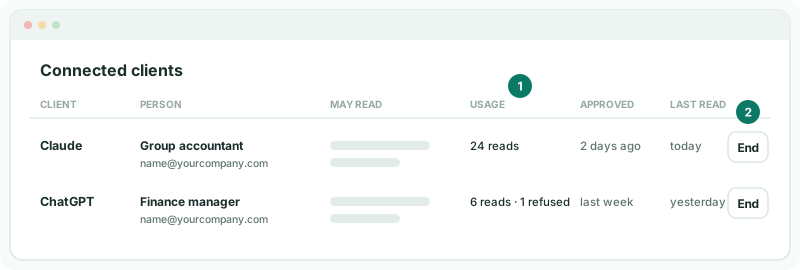
Click End to stop a connection on its next call — for example when someone leaves. They would have to connect again from Claude to use it. To stop every connection at once, untick Allow AI connections and save.
Every call, including refused ones, is recorded in the System Audit Trail with the data and company it asked for.
8If something does not work
| What you see | What to do |
|---|---|
| Every question is refused | Check that Allow AI connections is ticked and saved, with at least one company and one item of data. |
| The assistant cannot find a company | Tick it under Companies they may read. If it is ticked, the person who connected does not have report access to it in BrizoConsol. |
| The assistant says it cannot get a kind of data | Tick that item under What they may read, and save. |
| Claude Team or Enterprise has no Add custom connector | An Owner of the Claude organisation adds BrizoConsol first. |
| A connection stopped working | It may have been ended on the AI Access page. Connect again from Claude. |
Want more detail? See the documentation