
Budgets and Forecasts · Track 3 · Tutorial 1 of 1
Reforecast during the year
Available on ProPremium
A forecast is only useful while it is current. Each month that closes becomes actual in the forecast, and the months left need a fresh look.
1Move the forecast on
- Select Your Group, and in the reporting month control in the header choose Oct-2026.
- Select Demo Sales Company, and open Forecast → Profit & Loss.
Every month up to the reporting month now shows actuals, October included; the months after it show the forecast. What the forecast held for October is kept, to compare with.
2See how the month compared
- Open Reports → All Reports, and under Performance open Profit & Loss Forecast Variance.
- Choose Oct-2026.
Lines with a large variance are the ones to rethink for the rest of the year.
3Update the months left
- Back on Forecast → Profit & Loss, turn on Input Mode.
- Type the new November and December figures, or click a November cell and use the tools icon to repeat a value to December, as in Enter the budget by company and account.
Each value replaces what the forecast held for that account and month.
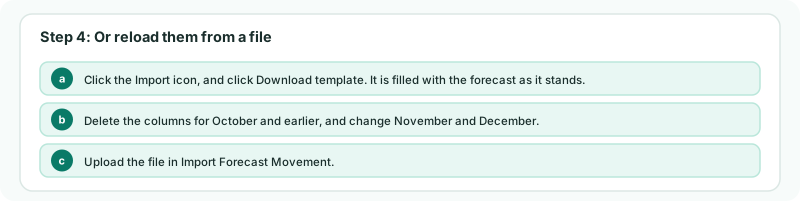
4Or reload them from a file
- Click the Import icon, and click Download template. It is filled with the forecast as it stands.
- Delete the columns for October and earlier, and change November and December.
- Upload the file in Import Forecast Movement.
An upload replaces everything in the forecast for each month in the file, on every account. Taking the closed months out keeps the file to the months you are updating, and keeps locked months out of it.
Check
On Forecast → Profit & Loss with Input Mode off, January to October show the actuals, November and December the new forecast, and FY-2026 adds them up.
5If something goes wrong
| What you see | What to do |
|---|---|
| October still shows as forecast | The reporting month is still September. Change it in the header. |
| Periods Jan-2026, … are locked. Contact administrator. | The file still has closed months in it. Delete their columns and upload again. |
| Input Mode or the Import icon is greyed out | The level you are on is not allowed by Budget & Forecast Input. Hover over it to see where to enter. |
Want more detail? See the documentation