
Operational Data · Track 1 · Tutorial 6 of 10
Update a dataset and its definition
Most months you only add the latest figures. Sometimes you correct history, or change how the dataset is set up. Each of these is a different action, and each touches different rows.
You will needThe Units sold dataset from Create a dataset and upload a CSV, and Nov-2026 units sold in a CSV.
By the endUnits sold with Nov-2026 added, and a clear idea of what each update changes.
1Add the new month
- Open Operational Data and click Upload data on Units sold.
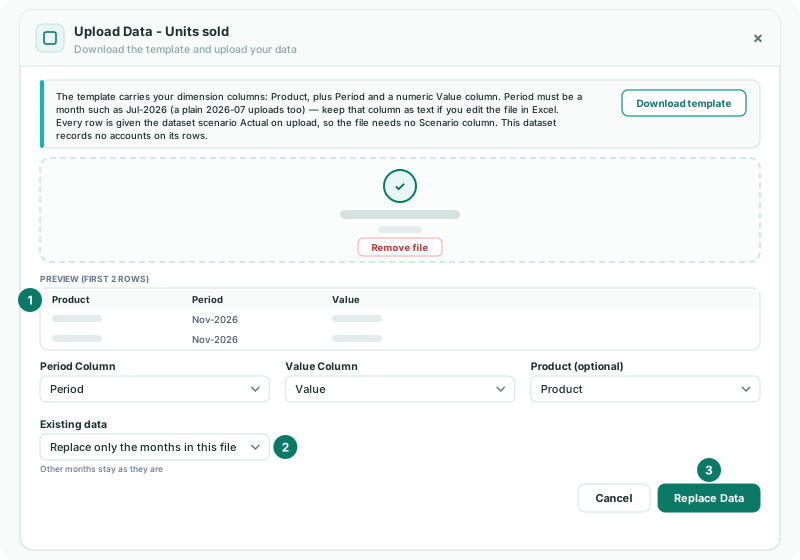
- Upload the Nov-2026 file, leave Existing data on Replace only the months in this file, and click Replace Data.
Only the months in the file are replaced; every other month stays as it is. Upload a month again the same way to correct it.
Check
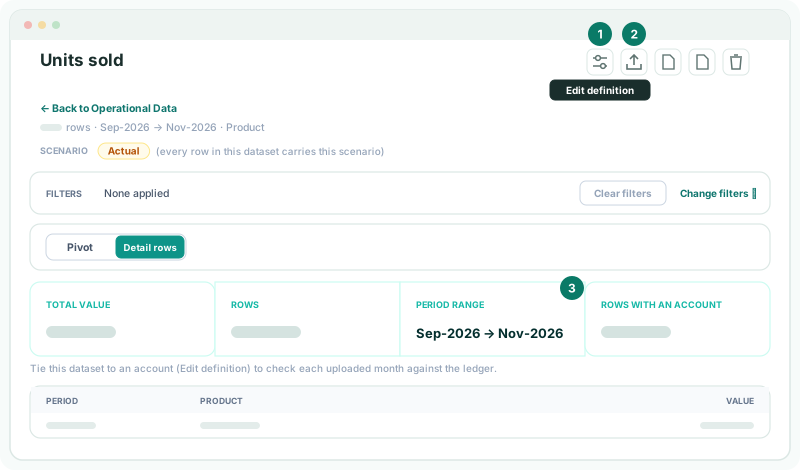
On the dataset page the period range now runs to Nov-2026, and Sep-2026 and Oct-2026 show the same figures as before.
2Replace everything only when you mean to
Replace all data removes every existing row, including months the file does not mention, and the selector shows how many rows that is. Use it to reload a dataset from one complete file, never for a monthly upload.
3Change the definition
- Click View data on the dataset, then Edit definition. Make the change and click Save changes.
| Change | What happens to rows already loaded |
|---|---|
| Name, description, dimension labels | The rows stay; reports show the new names. |
| One account for the whole dataset, or its account | Every row takes the account straight away. |
| No account | The account is cleared from every row. |
| One scenario for the whole dataset, or its scenario | Every row takes that scenario straight away. |
| Account or Scenario column in the file | The rows keep what they have; the next upload reads the column. |
| Period Weighting or Currency translation | The rows stay; reports read them the new way. |
4If something goes wrong
| What you see | What to do |
|---|---|
| Earlier months disappeared after an upload | The upload used Replace all data. Upload the full history again. |
| There is no Upload data or Edit definition | The dataset belongs to a subsidiary. Switch to that company to change it. |
| The upload reports rows it could not read | Read the summary shown when the upload finishes: it lists the rows it could not read and why. Correct the file and upload it again. |
Want more detail? See the documentation