
Operational Data · Track 1 · Tutorial 7 of 10
Connect Harvest for time
If the group tracks time in Harvest, BrizoConsol can read it directly: hours tracked and billable, what they are worth, invoices and expenses, by client, project, task or person. No CSV, and it can refresh every night.
1Connect Harvest
- Open Operational Data, click New Dataset, then Harvest.
- Click Connect Harvest, sign in to Harvest and allow access. You come back to the dialog.
- If your login reaches more than one Harvest account, choose it in Harvest account.
New Dataset offers a choice of source only once the company has a connection in Global Settings → Operational Source; with none, it opens straight on the file import. If Harvest is still not offered, it is not switched on for your BrizoConsol.
2Choose what to import
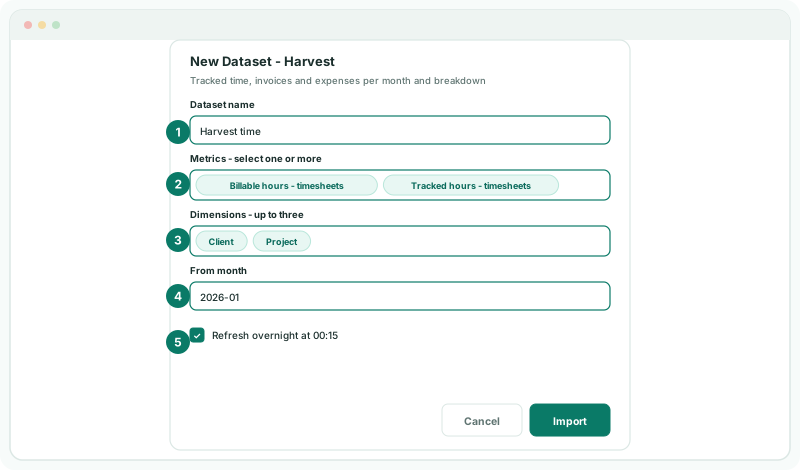
- In Dataset name, type Harvest time.
- Under Metrics - select one or more, choose Billable hours and Tracked hours, both from timesheets.
- Under Dimensions - up to three, choose Client and Project.
- Set From month to 2026-01, tick Refresh overnight, and click Import.
| From | Metrics | Breakdowns |
|---|---|---|
| Timesheets | Tracked hours, Billable hours, Billable amount, Cost amount, Average billable rate | Client, Project, Task, User |
| Invoices | Invoiced, Invoice due, Invoices | Client, Currency, State |
| Expenses | Expense cost, Billable expense cost, Expenses | Client, Project, Expense category |
Each of the three becomes its own dataset, so choose metrics from one at a time and give each import its own name. The breakdowns offered are the ones the chosen metrics carry.
3Check the import
Check
Harvest time is listed in Operational Data. Once the import has run, View data shows rows from Jan-2026 with the columns Metric, Client and Project. Filter Metric to Billable hours to read one measure at a time.
The dataset is written by the connector, so it has no Upload data or Edit definition. To change what it reads, click Update Harvest dataset on its row. You can move From month earlier, not later.
4If something goes wrong
| What you see | What to do |
|---|---|
| A breakdown can’t be chosen | Choose a metric first: the breakdowns follow the metrics. |
| An import is already queued or running for this dataset | Wait for it to finish, then update again. |
| Keep the original starting month or choose an earlier month | From month can only move earlier on an existing dataset. |
| The dataset stopped refreshing | Harvest was disconnected. Connect Harvest again; the rows already imported are kept. |
Want more detail? See the documentation