
Operational Data · Track 1 · Tutorial 5 of 10
Load budgets and forecasts
Operational targets belong next to the actuals: budgeted units, planned headcount. A dataset can hold one scenario, or take each row’s scenario from the file so actual, budget and forecast sit in one dataset.
1Take the scenario from the file
- Open Operational Data, click View data on Units sold, then Edit definition.
- Set Scenario to Scenario column in the uploaded file, and click Save changes.
The rows already uploaded keep the scenario they have, Actual. From now on the template has a Scenario column.
2Upload the budget
- Click Upload data and Download template.
- Add a row for each product and month of 2026, with Budget in the Scenario column, and save the file.
- Upload it, check that Scenario Column reads Scenario, leave Replace only the months in this file, and click Replace Data.
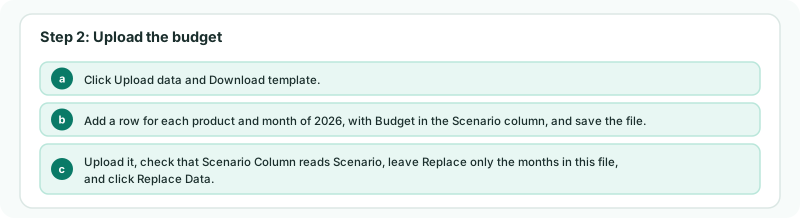
The Scenario column takes Actual, Forecast or Budget. Replace only the months in this file replaces those months for the scenarios in the file only, so uploading the budget leaves the actuals as they are.
Check
On the dataset page, filter Scenario to Budget: the 2026 months show your budget. Filter to Actual: Sep-2026 and Oct-2026 are unchanged.
3Or keep one scenario per dataset
A dataset that only ever holds one scenario can stay on One scenario for the whole dataset, with Budget chosen in Dataset scenario. Every row it uploads is Budget, and the file needs no Scenario column. Changing the dataset scenario later rewrites every row of the dataset.
4If something goes wrong
| What you see | What to do |
|---|---|
| Rows could not be read because of their scenario | The Scenario column holds something other than Actual, Forecast or Budget. The first values found are listed; correct them and upload again. |
| Forecast and Budget can’t be chosen | Forecast and budget are not included in the Standard edition. Only Actual is accepted. |
| The actuals disappeared | The upload used Replace all data. Upload the actuals again. |
Want more detail? See the documentation