
Operational Data · Track 3 · Tutorial 4 of 7
Choose how a model’s metrics total
A quarter of units sold is three months added together; a quarter of headcount is not. Each metric of a model says how its months combine, and a formula metric is worked out only after the figures are totalled.
1Know how months combine
A model holds monthly figures. When a report or dashboard reads a quarter or a year, each metric’s weighting decides how its months become one figure.
| Weighting | How the months combine | Use it for |
|---|---|---|
| Sum | Added together. | Flows: units sold, revenue, hours. |
| First period | The first month’s figure. | An opening position. |
| Last period | The last month’s figure. | Positions: headcount, customers at month end. |
| Average | Averaged. | A level that should be read as typical. |
| Weighted | Each month weighed by another linked metric: Σ value × weight ÷ Σ weight. | A ratio held as a figure, such as an average position weighed by impressions. |
2Set a position to Last period
- Open the Units and revenue model, add the Headcount dataset of Company A as a source, and add a metric named Headcount fed by its Value.
- Click the Headcount metric. In the panel, set Weighting to Last period.
- Set Format to Number and Decimals to 0.
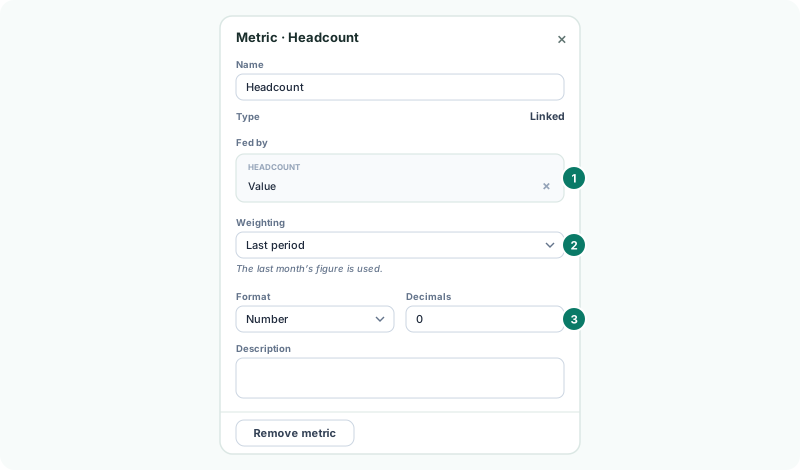
A new linked metric starts on Sum. The dataset’s own Period Weighting is not carried into the model: set it on the metric. See Choose the period weighting: Sum or Last Period.
3Weigh a ratio by what it is earned on
- For a ratio held as a figure, set Weighting to Weighted.
- In Weighed by, choose the linked metric each month is weighed by.
The Search traffic vs revenue template sets this up for you: CTR and Average position are each weighed by Impressions, so a quarter’s CTR is not the average of three months’ CTRs. A formula metric can’t be chosen as the weight.
4Let a formula decide
- Click Revenue per unit. Its Weighting is Default.
- Set Format to Currency and Decimals to 2.
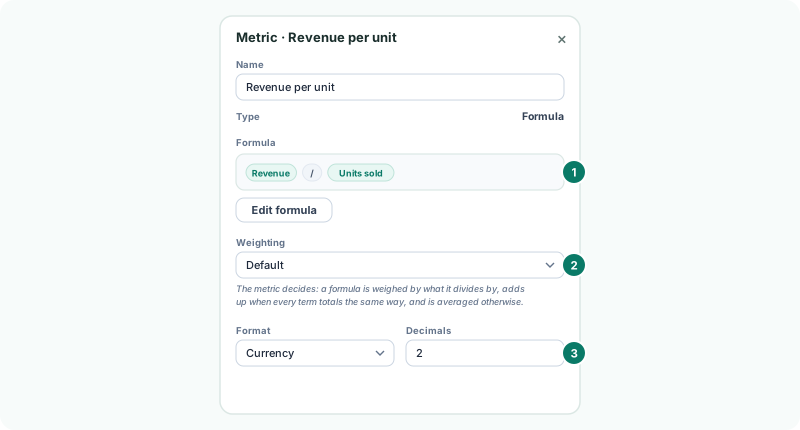
A formula is worked out after its metrics are totalled. On Default, a formula is weighed by what it divides by, adds up when every term totals the same way, and is averaged otherwise. So a quarter’s revenue per unit is the quarter’s revenue over the quarter’s units, not an average of three monthly ratios.
If the panel says Check how this metric totals, the formula doesn’t show which rule its months combine by. Choose one.
5Save and check
- Click Save, wait for Up to date, and click View. Read a quarter.
Check
For the quarter, Units sold is the three months added together, Headcount is the last month’s figure, and Revenue per unit is the quarter’s Revenue divided by its Units sold.
6If something goes wrong
| What you see | What to do |
|---|---|
| A quarter of headcount is three times too big | The metric is on Sum. Set Last period. |
| Weighed by lists nothing | Add the linked metric to weigh by first. A formula can’t be a weight. |
| The panel warns a line looks like a total | A total and its own lines both feed the metric, so the same money is counted twice. Unlink one. |
| A metric shows too many or too few decimals | Set Decimals on the metric, from 0 to 6. |
Want more detail? See the documentation