
Operational Data · Track 3 · Tutorial 3 of 7
Match source values to dimension members
Each company names things its own way: one says Widgets, another WGT Widgets. A model dimension has its own members, and each source’s values are matched onto them, so the same product adds up across companies.
1Open the link
- Open the Units and revenue model, and choose Units sold of Company B on the left.
- Click the line from Product to the Product dimension. The link panel opens beside the canvas.
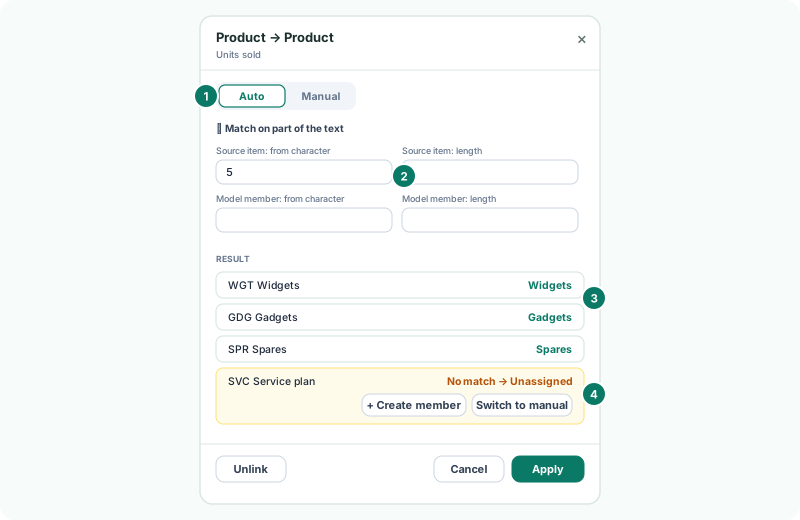
Each of the field’s values is listed under Result with the member it lands on. Company B codes its products, such as WGT Widgets, so with plain Auto matching nothing matches and every value goes to Unassigned.
2Match on part of the text
- Leave Auto on, and open Match on part of the text.
- In Source item: from character, enter 5, so the code and the space are skipped.
- Watch the Result list: each value now matches the member with the same name.
| Setting | What it compares |
|---|---|
| Source item: from character | Where the source value starts being compared. |
| Source item: length | How many characters of the source value are compared. Empty means to the end. |
| Model member: from character | Where the member name starts being compared. |
| Model member: length | How many characters of the member name are compared. |
Auto ignores capitals and spaces at either end, so widgets and Widgets match.
3Deal with what doesn’t match
SVC Service plan has no member yet. The choices:
| Choice | What happens |
|---|---|
| + Create member | Adds a member named after the whole value. With part of the text compared, the new name has to fit the comparison too, so it is often simpler to add the member yourself. |
| Switch to manual | Moves the link to Manual, starting from what Auto matched. Pick the member for each value, or click + New to add one. |
| Leave it | The value lands on Unassigned, so the totals still agree with the source. |
- Click Apply to keep the matches so far.
- Click the Product dimension, type Service plan in + Member, and click Add.
- Click the line from Product again: compared from character 5, SVC Service plan now matches Service plan. Click Apply.
Check
The Product node shows Auto, and no Company B value sits on Unassigned.
4Group the members
- Click the Product dimension in the Model cube.
- Type Hardware in + Member and click Add.
- Beside Widgets and Gadgets, choose In Hardware.
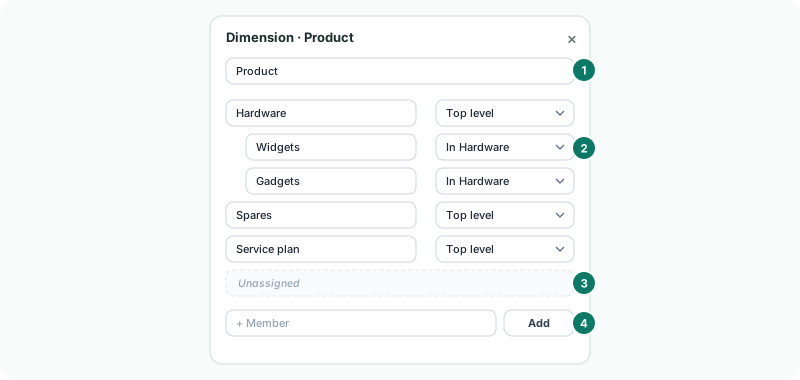
A parent member reads the figures of everything under it, so Hardware is Widgets plus Gadgets. Auto matches on member names, so renaming a member changes which values it takes.
5Save and check
- Click Save, and when the badge reads Up to date, click View.
Check
With Product on the rows, Hardware is the total of Widgets and Gadgets, and Company B’s figures sit beside Company A’s on the same members.
6If something goes wrong
| What you see | What to do |
|---|---|
| Every value goes to Unassigned | The text doesn’t match. Set where the comparison starts, or switch to Manual. |
| Two values land on one member by mistake | Switch to Manual and pick the right member for each. |
| A member can’t be placed in another | A member can’t go in one of its own members. |
| This field has no values yet | The dataset has no rows for this field. Load its data first. |
Want more detail? See the documentation