
Operational Data · Track 1 · Tutorial 4 of 10
Link a dataset to an account
Some operational data breaks down a figure the ledger already holds: revenue by channel, payroll by department. Link the dataset to that account and BrizoConsol checks, month by month, that your breakdown adds up to the books.
1Link the account
- Open Operational Data, click New Dataset, then Upload a file if a choice of source appears.
- Name it Revenue by channel, with one dimension, Channel.
- Set Account to One account for the whole dataset, and choose G-4000 - Sales Revenue in Dataset account.
- Click Next and upload the file.
Choose Account column in the uploaded file instead when rows belong to different accounts. The template then has an Account column, which takes a code such as G-4000 or the label as it appears in the pickers, such as G-4000 - Sales Revenue. Leave it blank for a row with no account.
2Read the validation
- Click View data on the dataset and expand Validation.
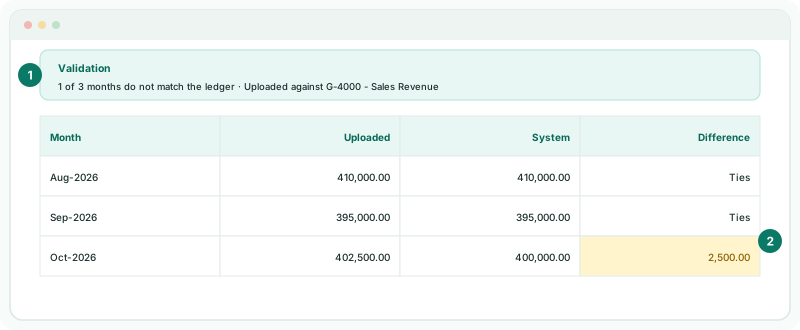
Each month compares the dataset’s total (Uploaded) with the ledger (System). Ties means they match; No ledger month means the books have nothing for that month yet. A difference does not stop the upload: it tells you where the breakdown and the books disagree.
Check
The panel reads Matches the ledger in all the months you uploaded, or names the months that do not match.
3If something goes wrong
| What you see | What to do |
|---|---|
| A month does not tie | Compare the file with the ledger for that month. Correct the file and upload it again, or post the missing entry in the books. |
| The import lists accounts it could not match | Those rows’ Account values are not in the chart. Use the code or the label exactly as the pickers show it. |
| There is no Validation panel | The dataset has no account. Click Edit definition and choose One account for the whole dataset: every row already uploaded takes the account straight away. |
Want more detail? See the documentation