
Security · Track 1 · Tutorial 1 of 1
Secure sign-in with two-factor and passkeys
A password alone is the weakest way into the group’s books. Two-factor authentication and passkeys close that gap, and on Pro and Premium the subscription owner can require them for everyone.
1Open your sign-in settings
- Open the user menu at the top right, and choose Profile.
| Your details | Your name and the email you sign in with. The audit trail is stamped with it. |
|---|---|
| Ways to sign in | Email and password, and any provider linked to your account. |
| Password protection | Two-factor authentication and passkeys. They apply only when you sign in with your password; a linked provider brings its own second factor. |
2Set up two-factor authentication first
- Under Password protection, click Set up on Two-factor authentication.
- Click Enable Two-Factor Authentication. Confirm your password if asked.
- Click Set up again. The dialog now shows a QR code.
- Scan the QR code with your authenticator app, enter the 6-digit code, and click Confirm Two-Factor Authentication.
- Copy the Recovery Codes and keep them somewhere safe, away from your phone.
The recovery codes are shown in the first 24 hours after you confirm. Each one signs you in once if you lose your phone.
3Add a passkey
- Under Passkeys, click Add a passkey.
- Answer your browser’s prompt with your fingerprint, face, PIN or security key. Confirm your password if asked.
Each passkey is listed with when it was added and last used, and a Remove button.
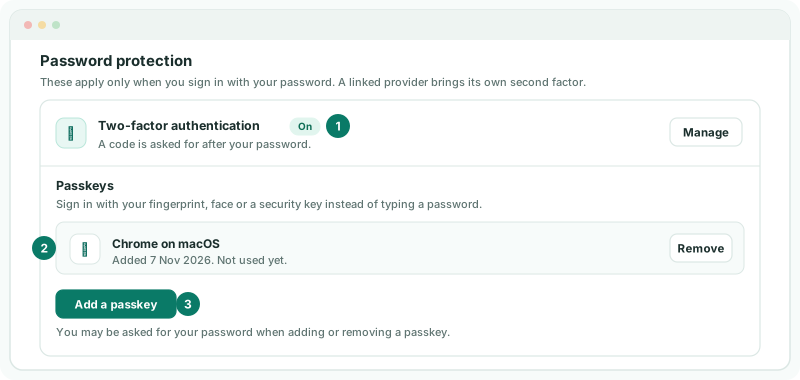
The order matters. A passkey is a stronger way in than a password, so registering one while two-factor is off switches password sign-in off. With two-factor already on, your password keeps working alongside the passkey. Turning two-factor off later switches the password off again while you hold a passkey.
4Sign in the new way
| With your password | After the password, enter the code from your app under Authentication Code. Lost the phone? Click Use a recovery code, enter one, and click Log in with Recovery Code. |
|---|---|
| With a passkey | On the sign-in page, click Sign in with a passkey, or pick the passkey your browser offers in the email field. |
Check
On your profile, Two-factor authentication shows On, your passkey is listed, and Email and password still shows On.
5Require it for everyone (subscription owner)
- Open the user menu, choose Subscriptions, and click Sign-in Policy on the subscription.
- Under BrizoConsol account protection, choose Require two-factor or passkey.
- Under When it takes effect, choose Immediately or a grace period of 7, 14 or 30 days.
- Click Save policy.
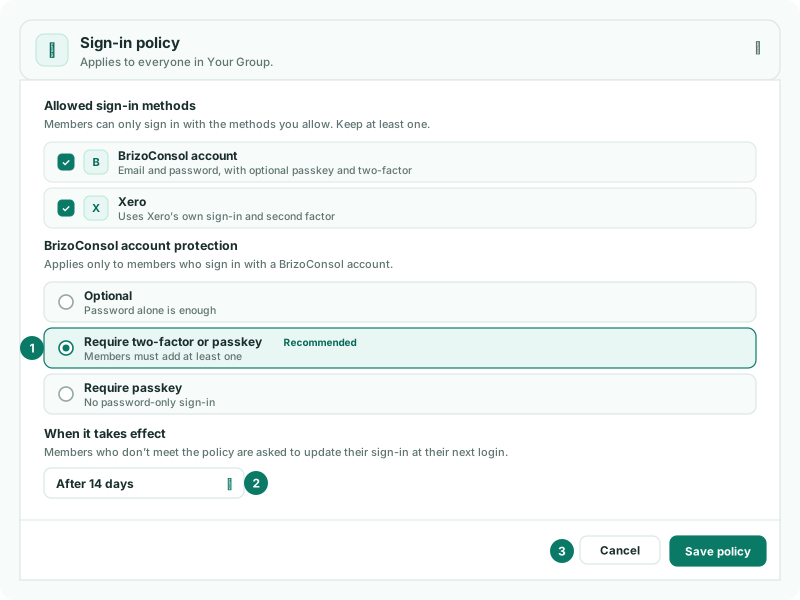
| Optional | A password alone is enough. |
|---|---|
| Require two-factor or passkey | Members must add at least one. |
| Require passkey | No password-only sign-in. |
The dialog counts the members who don’t meet the policy yet. From the date it takes effect, they are asked at their next sign-in to set up two-factor or a passkey before they can go on. The policy is part of the Pro and Premium editions; Allowed sign-in methods in the same dialog limits which ways in, such as Google or Xero, members may use.
6If something goes wrong
| What you see | What to do |
|---|---|
| A passkey signs you in, so your password is switched off. | You added a passkey before setting up two-factor. Set up two-factor authentication to use your password again. |
| This browser does not support passkeys. | Use a current browser, or sign in with your password and code. |
| The passkey could not be registered. Please try again. | The browser prompt was cancelled or timed out. Click Add a passkey again. |
| Two-factor authentication applies to password sign-in, which is switched off on this account. | Your account signs in through a provider only. Set a password first, or rely on the provider’s second factor. |
| Sign-in Policy is greyed out, Available in Pro | The policy needs the Pro or Premium edition. |
Want more detail? See the documentation