
Security · Track 3 · Tutorial 1 of 1
Find who changed what in the System Audit Trail
Auditors ask who changed a figure, when, and what it was before. The System Audit Trail records each change across the group with its author, and keeps the old and new values.
1Open the trail
- Open Settings → Global Settings → System Audit Trail.
It covers every organisation in the subscription, newest first.
| Time | When the change was recorded. |
|---|---|
| Action | What happened, such as journal.updated. |
| Summary | The change in one line, such as Updated journal ADJ-1026. |
| User | Who did it. Calculations the system ran show system. |
| Org | The organisation it relates to. |
| Period | The month it affects, such as Oct-2026. |
| Scenario | Actual, Budget or Forecast. |
| Subject | The record changed, with its ID. |
| Details | The values recorded, with View to open them in full. |
2Narrow it down
- In Action, choose the kind of change, or keep All actions. Only actions that have happened are listed.
- In Period, choose October 2026.
- Click Apply.
- Type in Search visible events to find a reference, a user or a company among the rows shown.
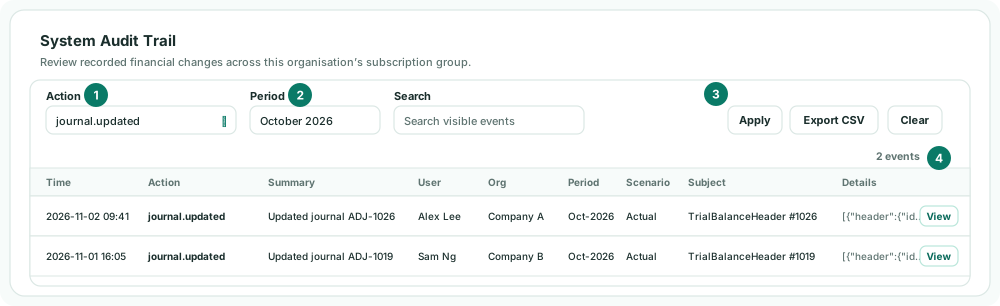
Changes with no month, such as a user deployment, have no period: clear Period to see them. The page shows the latest 500 events that match.
| Action | Recorded when |
|---|---|
| journal.created, journal.updated, journal.deleted | A journal is added, changed or deleted, including imports. |
| elimination.created, elimination.updated, elimination.deleted | A manual elimination is added, changed or deleted. |
| auto_elimination.reviewed, auto_elimination.invalidated | A row in Elimination Review is approved or rejected. |
| exchange_rate.updated, exchange_rate.imported | Exchange rates are changed or imported. |
| connector.month_loaded | A company’s month is loaded from its accounting system. |
| period.locked, period.unlocked | A month is locked or unlocked. |
| settings.user_deployment_saved, settings.user_deployment_removed | Someone is given access, or has it removed. |
3See exactly what changed
- Click View on the event.
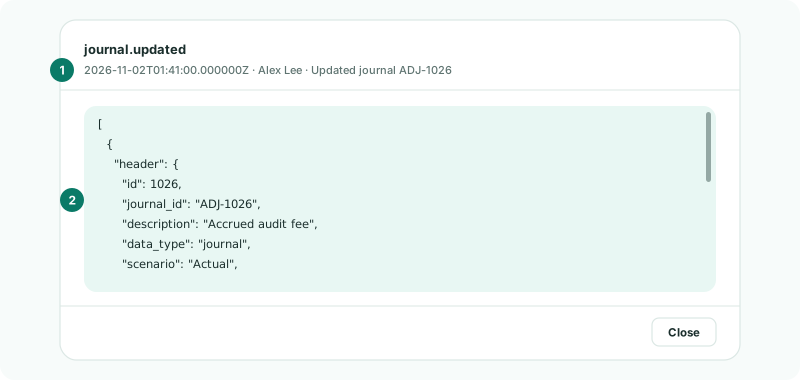
The dialog shows the event’s recorded values in full: the new values of a change, or the old values of a deletion. Click Close to go back. The CSV export has the old and new values side by side.
4Export for the auditor
- With the filters applied, click Export CSV.
The CSV holds every matching event, not only the 500 on the page, with the old values, new values, source, IP address and browser of each.
Check
For any October change the auditor picks, you can show in the trail who made it, when, and the values before and after.
5If something goes wrong
| What you see | What to do |
|---|---|
| System Audit Trail isn’t in Global Settings | It needs Administrator access. |
| A change you expect isn’t listed | Clear Period: the change may have no month, or a different one. Check Action is All actions. |
| The search finds nothing | Search visible events looks only at the rows on the page. Apply a narrower Action or Period first. |
Want more detail? See the documentation