
Cell Reports · Track 1 · Tutorial 5 of 12
Let readers choose the entity, period and currency
Available on ProPremium
A Cell Report can ask its reader a question. A Selection list cell offers a list of entities, months or currencies, and the bound cells read their entity, month or currency from it. In View, the reader picks from the list, and only the figures that depend on it are worked out again.
1Know how a choice reaches the figures
| The choice | A cell of type Selection list, with a Source: Entities, Currencies, Periods or Fiscal years. Its Selected value is what the report opens with. |
|---|---|
| The figures | Each bound cell’s Entity, month and currency can read a cell instead of a fixed value: tick Cell reference beside the field, or choose Link to a cell for the month, and enter the cell, such as B2. |
| In View | The reader picks a value. BrizoConsol works out again the cells that read it. Nothing is saved: the next reader starts from the Selected value. |
A reference reads a cell on the same sheet, so keep the choices on the sheet with the figures that use them.
2Add the three choices
- Open the monthly summary in the editor. In A2 type Entity, and in D2 Currency.
- Click B2. Set Cell type to Selection list, Source to Entities, and Selected value to Your Group.
- Click B3, which holds the typed month. Set Cell type to Selection list, Source to Periods, and Selected value to Oct-2026.
- Click E2. Set Cell type to Selection list, Source to Currencies, and Selected value to SGD.
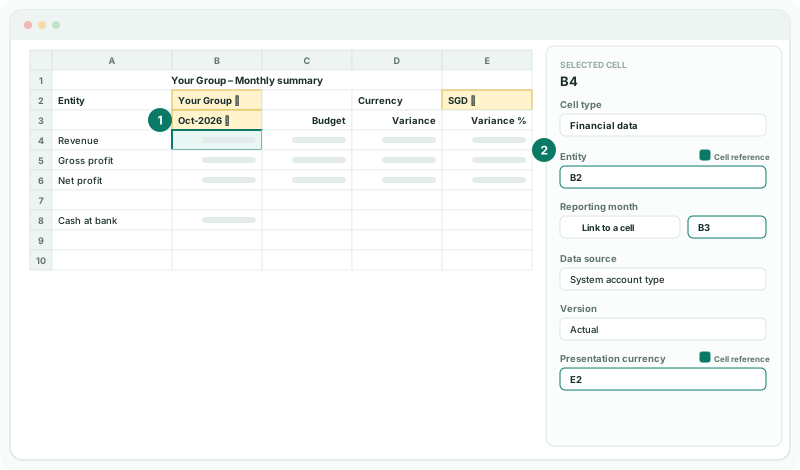
B3 still heads the Actual column, now as a choice. A heading that names the month is always the month the figures show.
3Point each figure at the choices
- Click B4. In the inspector, beside Entity, tick Cell reference and enter B2.
- Under Reporting month, choose Link to a cell and enter B3.
- Beside Presentation currency, tick Cell reference and enter E2.
- Do the same for every bound cell: C4, B5, C5, B6, C6 and B8.
- Click Save.
The formulas in D, E and row 10 need nothing: they read B and C, so they follow whatever B and C show.
A reference that isn’t a cell, such as B or 2B, shows its box in red. Fix it before you save.
4Use the choices in View
- Click View.
- Click B2, and choose Company B. Then choose Sep-2026 in B3, and AUD in E2.
After each choice, the cells that read it show that they are updating, then show the new figures: Company B’s, for September, in AUD. The variance and margin follow.
Check
With Company B, Sep-2026 and AUD chosen, B4 matches Company B’s revenue on Reports → Profit & Loss for Sep-2026 in AUD. Close the report and open it again: it shows Your Group, Oct-2026 and SGD.
5Know when not to use a choice
A cell whose figure should never change — a budget fixed at the start of the year, a prior-year comparison for one entity — keeps its fixed value. The choice is for what the reader is meant to change. A report opened in a pack or a dashboard uses the Selected values, so set them to what that page should show.
6If something goes wrong
| What you see | What to do |
|---|---|
| A figure doesn’t change with the choice | That cell doesn’t read it. Tick Cell reference on its field, or choose Link to a cell for its month. |
| The reference box is red | It isn’t a cell. Enter a column letter and a row number, such as B2. |
| A figure shows zero after choosing a month | The entity has no figures for that month, or for the version the cell reads. |
| The report doesn’t open on the choice a reader made | Choices in View aren’t saved. Change the Selected value in the editor and save. |
| The selected entity is not available. | The cell the Entity reads holds a name that isn’t a company in the subscription. Make it a Selection list of Entities rather than typed text. |
| The reference points to a cell on another sheet | References read the same sheet. Move the choice to the sheet with the figures. |
Want more detail? See the documentation