
Intercompany Eliminations · Track 2 · Tutorial 8 of 8
Edit, reorder, retire and delete rules
Rules outlive the month they were written in. Accounts are renamed, items stop, methods turn out wrong. Each rule has an effective period, and every change applies to every month inside it — so retire a rule that has stopped, and delete only one that was wrong from the start.
1Find your way around the list
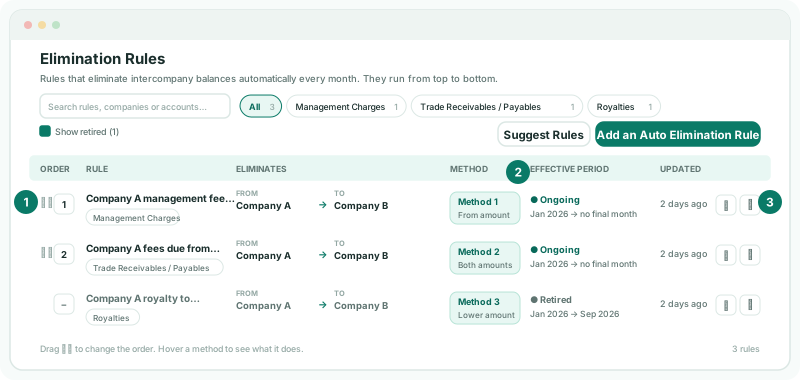
Open Intercompany → Elimination Rules. Each rule shows its Order, its description and type under Rule, the From and To company and account under Eliminates, its Method, its Effective period and when it was Updated. Type in Search rules, companies or accounts… to find a rule, or click a type above the list to show only its rules. Retired rules are hidden until you tick Show retired.
| Effective period shows | It means |
|---|---|
| Ongoing, Jan 2026 → no final month | The rule runs from January 2026 with no end. |
| Ends after final month, Jan 2026 → Dec 2026 | The rule runs through December 2026, December included. |
| Retired, Jan 2026 → Sep 2026 | The rule has been retired: it ran through its final month and runs no further. |
| All earlier months → … | A rule added before effective periods existed, with no start month. It applies to every month before its end. |
2Put the rules in order
- Clear the search and choose All: the order can only be changed while the whole list is shown.
- Drag a rule by its ⋮⋮ handle to its place, or click ⋯ (More) on it and choose Move up or Move down.
Rules are run in this order, but each one is worked out on its own, so the order never changes an amount. Use it to make the list easy to read — Your Group keeps each relationship together, Company A with Company B first, then Company A with Company C.
3Change a rule
- Click Edit (✎) on the rule. Updating elimination rule opens with its settings.
- Change what is needed — the accounts after a company recodes them, the method, the tolerance, the treatment.
- Click Confirm.
The group is recalculated, and the changed rule is applied to every month in its effective period, including months you have already reported and months that are locked: month locks don’t restrict rules. The rule’s period is what decides how far back a change reaches.
So when a change should only apply from a certain month — say Company B moves its payable to a new account from January 2027 — don’t edit the rule. Instead:
- Retire the rule with December 2026 as its final month, as in step 4.
- Add a new rule with the new account and Effective from month January 2027.
The old months keep the old rule’s eliminations, and the new rule takes over from January.
| Changing the period | Does |
|---|---|
| An earlier Effective from month | Eliminates the added months too. |
| A later Effective from month | Removes the rule’s eliminations from the months now before it. |
| A Final month (inclusive) | Must be on or after the effective-from month, and can’t come before the latest month the rule has posted. |
Changing the Description or Intercompany Type changes how every elimination of the rule in its period is labelled and where it is listed.
4Retire a rule that has stopped
Company A stopped charging Company B a royalty after September 2026.
- Click ⋯ (More) on the royalty rule, and choose Retire…. Retire Elimination Rule opens.
- In Final month (inclusive), choose September 2026, the last month the rule should apply.
- Click Retire Rule.
The rule leaves the list; tick Show retired to see it, marked Retired, with its eliminations, journals and review records up to and including September kept. From October it runs no more, and Retire… is unavailable for it.
The final month can’t come before a month the rule has already posted, so its existing journals are never removed by retiring. A retired rule always keeps a final month: you can move it later with Edit, but not clear it.
5Delete a rule that was wrong
- Click ⋯ (More) on the rule, and choose Delete.
- In Delete Elimination Rule, check the rule’s name and click Delete Rule.
Deleting removes the rule and its eliminations from every month, and those amounts reappear in the group figures. Months approved in Elimination Review were posted as entries of their own, and stay. Delete only a rule that should never have eliminated anything — wrong accounts from the start, or a duplicate of another rule.
Check
After any change, open the group Balance Sheet and Profit & Loss for a past month you have reported, and compare them with what you reported. A difference means the change reached that month — expected only if the month is inside the changed rule’s period.
6If something goes wrong
| The final month cannot precede the latest posted month (…). Existing journals must be preserved. | The rule has posted in a later month. Choose that month or a later one as the final month. |
| The final month must be on or after the effective-from month. | Choose a final month on or after the start. |
| A retired rule must keep a final month. | A retired rule can’t be made ongoing again. Add a new rule from the month it should restart. |
| A rule can’t be dragged, and Move up and Move down are unavailable | The list is searched or filtered. Clear the search and choose All. |
| A reported month changed after editing a rule | The month is inside the rule’s period. Put the rule back as it was, then retire it and add a new rule from the month the change should start, as in step 3. |
| Amounts are eliminated twice | Two rules cover the same accounts in the same months. Retire one before the other starts, or delete the duplicate. |
| A deleted rule’s amounts are still eliminated in some months | Those months were approved in Elimination Review and posted as their own entries. Delete those entries if they should go too. |
Want more detail? See the documentation